Locking articles in Hugo
Introduction
Sometimes, a specific article may have flaws or contain information that we don’t want everyone to see, but we still want the article to be accessible to a select group of people. This is where article passwords come in handy!

Achieving this effect is very simple and only requires modifying 3 files. If there are multilingual needs, translation keys need to be modified.
Modify single.html
Navigate to the website’s root directory and open the /layouts/posts/single.html file. Add the following content below {{- $params := .Scratch.Get "params" -}}.
| |
It should look like this:
| |
Modify default.md
Next, go to the website’s root directory and open the /archetypes/default.md file. Add promptKey: "" and password: "". It should look like this:
| |
Modify Internationalization Language Files
Finally, navigate to the /i18n/your-language-code.toml file in the website’s root directory and add the translation key values. Below are examples using Traditional Chinese (zh-tw) and English (en).
zh-tw.toml
| |
en.toml
| |
Usage
If the article requires a password, simply enter the password in the password: "" field of the article’s markdown file. For example, if the password is 123, enter password: "123". If the password is left as password: "", the article will be viewable without a password.
You can modify promptKey: "" to change the prompt message for entering the password. By default, "" uses the translation key in the translation file. If you want to change the prompt to "This article is private.", enter promptKey: "This article is private."
Conclusion
On a whim, I researched and developed a feature to lock articles in Hugo. At first, I thought it wouldn’t be very useful, but after using it, I found it incredibly convenient. I highly recommend giving it a try!
Environment
- Hugo 0.144.2
- LoveIt theme (version from GitHub on February 21, 2025)
References
- Stilig. (July 25, 2023).Hugo 的 LoveIt 主题修改及增强(一). Stilig. Retrieved March 14, 2025 from https://stilig.me/posts/enhancing-loveit-one
License
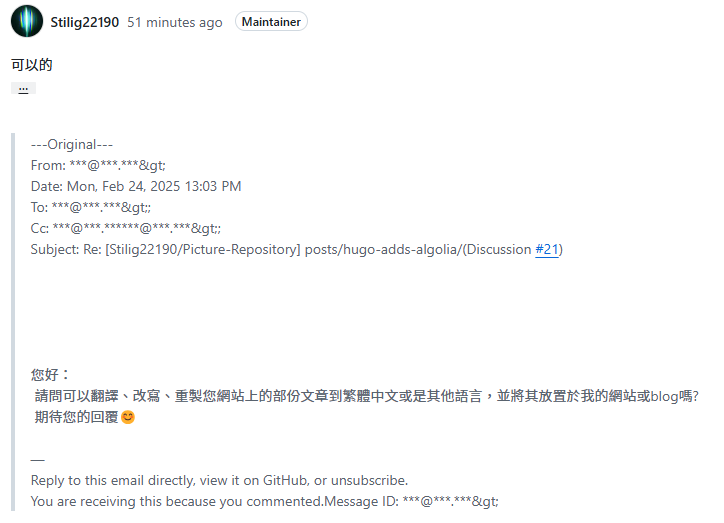
Some content of this article is reproduced, adapted, and forwarded with the permission of the original author, Stilig, as referenced in the source. The rest of the content is original.

Related Posts

![[Test] Website Network Connection Speed Test](https://josh-test-lab.github.io/posts/Website%20Network%20Connection%20Speed%20Test/cover%20image.webp)
![[Thoughts] 2024 Joint Conference of University Administrators for Teacher Education](https://raw.githubusercontent.com/Josh-test-lab/website-assets-repository/refs/heads/main/posts/2024%20Joint%20Conference%20of%20University%20Administrators%20for%20Teacher%20Education/cover%20image.webp)