目錄

本地端的 LaTex 環境架設, Tex Live + VS Code 打造自己的 Overleaf

封面圖片為作者製作,包含 $\LaTeX$ 、 TeX Live 與 VS Code 標誌。

你是否已對 Overleaf 在編譯時超過時間限制而煩惱?有沒有過因為網路出現問題而無法線上編譯?或是使用 $\LaTeX$ 進行排版的新手?本篇文章將一步步帶領你在自己的電腦安裝 TeX Live 軟體,並使用 VS Code 作為 $\LaTeX$ 的編輯器。

$\LaTeX$ 是什麼?

$\LaTeX$ 是一種基於 $\TeX$ 的排版系統,與常見的 Microsoft Word 、 Google Docs 不同的是, $\LaTeX$ 不使用圖形化介面進行排版,而是由使用者透過一行行指令進行編寫。 $\LaTeX$ 初版由美國電腦科學家萊斯利·蘭伯特(Leslie Lamport)在 1984 年發布,其初衷即讓「使用者擺脫排版的麻煩」,即使使用者缺乏排版和程式設計等基礎知識,也能透過 $\LaTeX$ 輕鬆簡單地完成文件排版。 $\LaTeX$ 的排版不乏公式、圖表等數學、物理、工程領域常用元素,也包含音樂、西洋棋、象棋等排版工具,更擁有交叉引用、文獻引用、目錄編排等便利的功能,因此 $\LaTeX$ 也深受學術界與出版業的歡迎。

與一般使用圖形化介面的編輯軟體不同, $\LaTeX$ 採用「內容與格式分離」的編輯方式,即使用者無法立即查看編輯內容,而是得先經過 $\LaTeX$ 編譯器進行編譯,才可看到內容。這麼做的好處是,其儲存於 .tex 檔案中的檔案大小往往不大,方便進行版本控制且可確保在不同平臺產出的排版效果都一致。

正如前面所述, $\LaTeX$ 適合產出學術報告、論文等檔案,因此一般使用者除有需求外,仍可優先選用其他圖形化編輯器。若 $\LaTeX$ 初學者有學術報告的排版需求,也可以先嘗試線上免費工具,如 Overleaf ,以降低 $\LaTeX$ 的學習門檻與避免安裝編譯器時遇到的問題。

以下將從安裝 TeX Live 開始,寫下我的安裝流程,並使用 VS Code 作為 $\LaTeX$ 的文本編輯器。

安裝 TeX Live

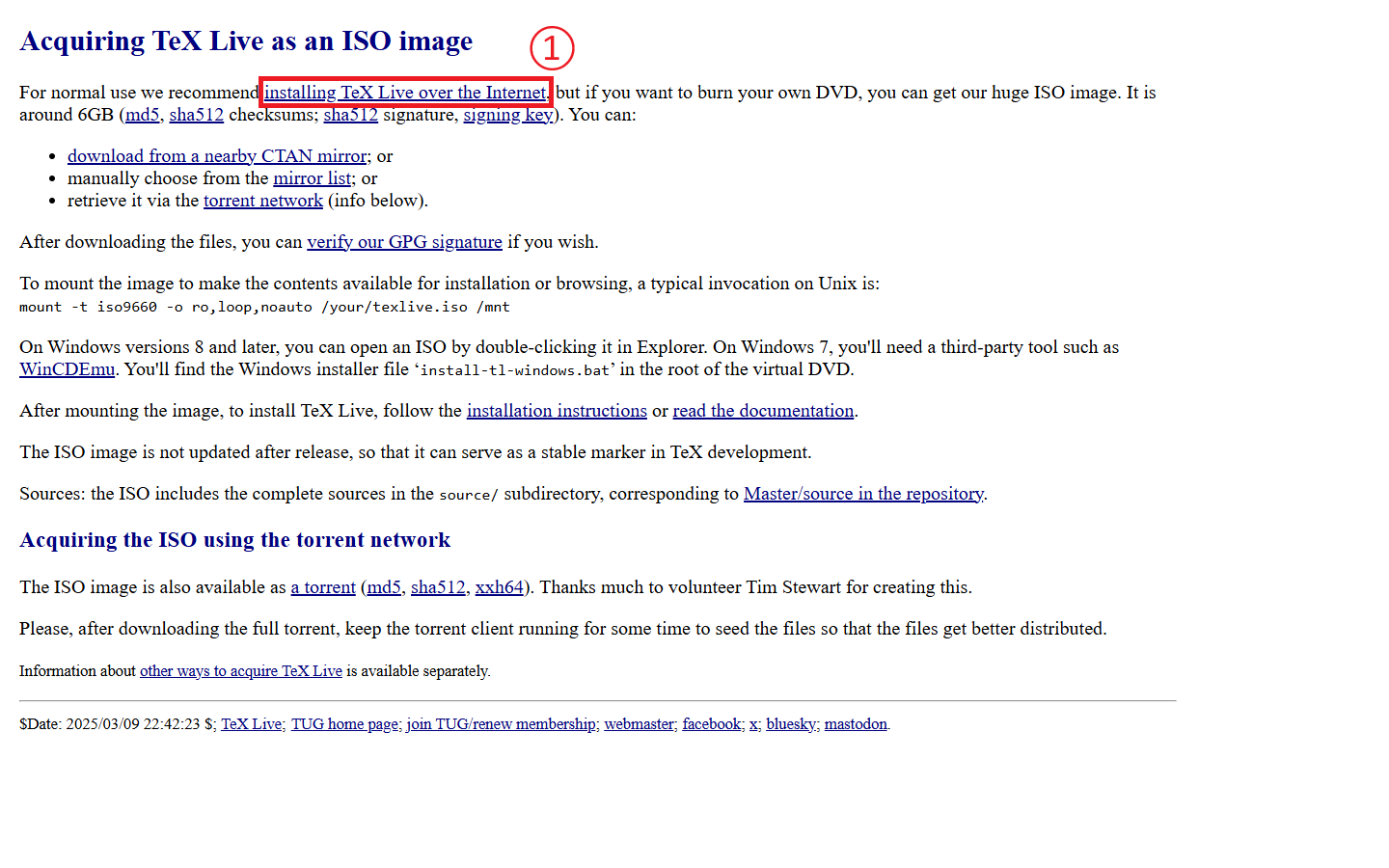
首先,前往 https://tug.org/texlive/acquire-iso.html 下載所需的軟體。

第一步,點擊 installing TeX Live over the Internet

https://raw.githubusercontent.com/Josh-test-lab/website-assets-repository/refs/heads/main/posts/Setting%20Up%20a%20Local%20LaTeX%20Environment%20Build%20Your%20Own%20Overleaf%20with%20TeX%20Live%20and%20VS%20Code/1.png

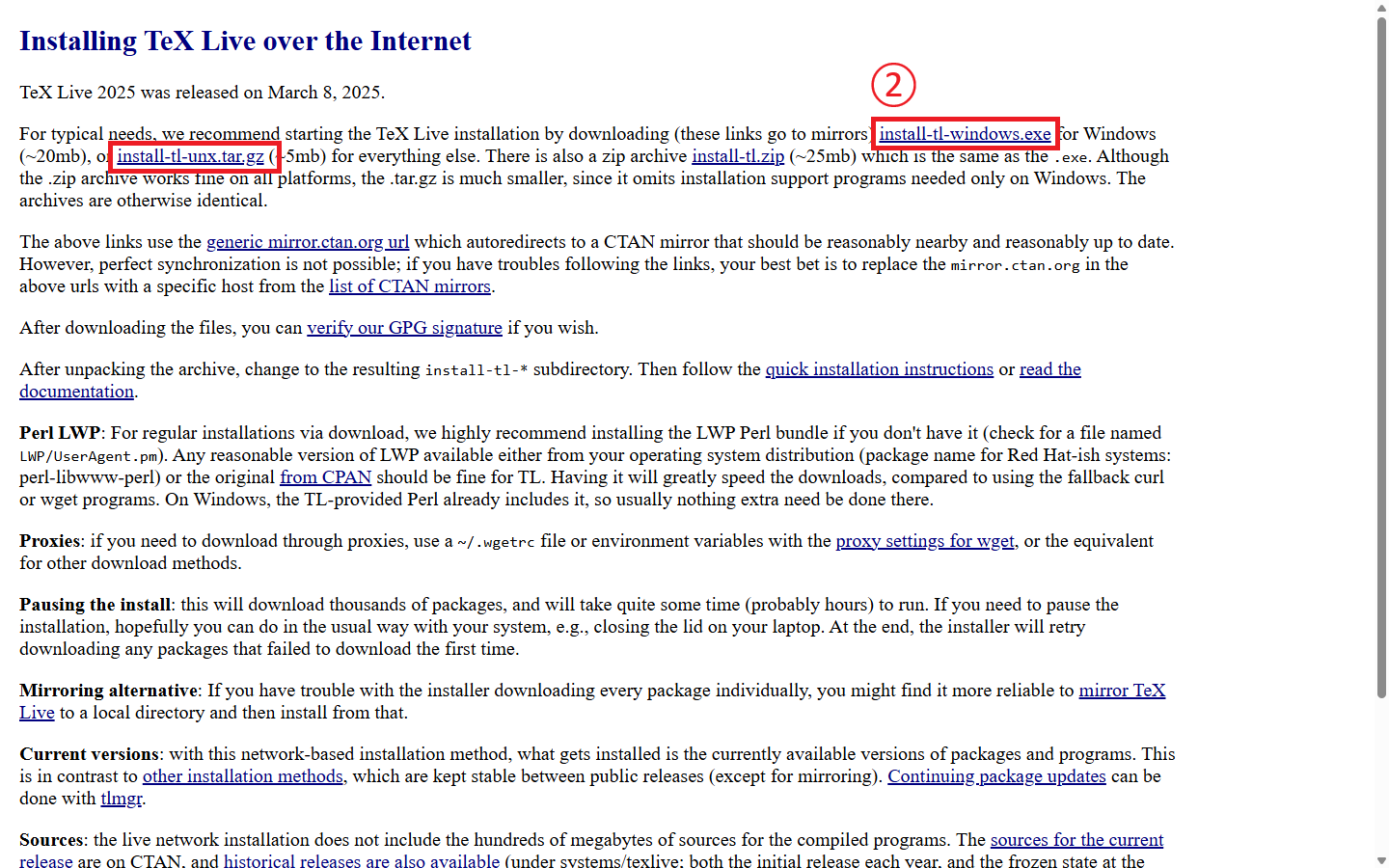
第二步,依照對應系統下載安裝執行檔,這裡以 Windows 11 操作系統為例,點擊 install-tl-windows.exe

https://raw.githubusercontent.com/Josh-test-lab/website-assets-repository/refs/heads/main/posts/Setting%20Up%20a%20Local%20LaTeX%20Environment%20Build%20Your%20Own%20Overleaf%20with%20TeX%20Live%20and%20VS%20Code/2.png

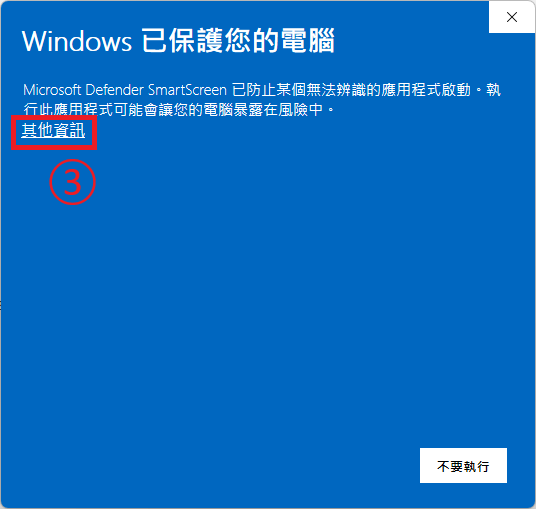
第三步,開啟剛下載的 TeX Live 安裝執行檔,如果遇到安全防護,點擊其他資訊

https://raw.githubusercontent.com/Josh-test-lab/website-assets-repository/refs/heads/main/posts/Setting%20Up%20a%20Local%20LaTeX%20Environment%20Build%20Your%20Own%20Overleaf%20with%20TeX%20Live%20and%20VS%20Code/3.png

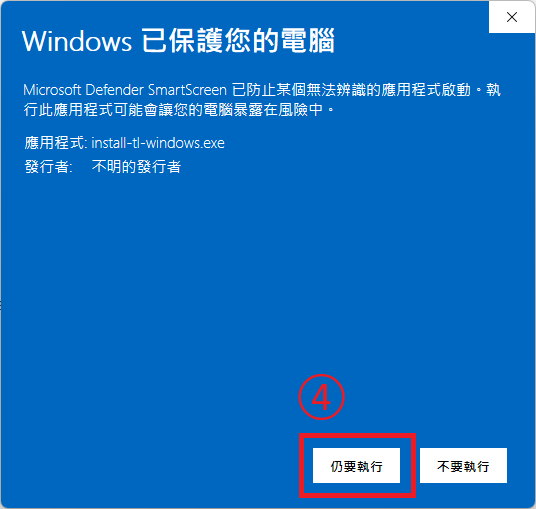
第四步,點擊仍要執行

https://raw.githubusercontent.com/Josh-test-lab/website-assets-repository/refs/heads/main/posts/Setting%20Up%20a%20Local%20LaTeX%20Environment%20Build%20Your%20Own%20Overleaf%20with%20TeX%20Live%20and%20VS%20Code/4.png

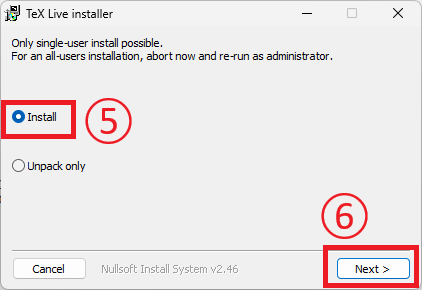
第五步,點擊 Install

第六步,點擊 Next >

https://raw.githubusercontent.com/Josh-test-lab/website-assets-repository/refs/heads/main/posts/Setting%20Up%20a%20Local%20LaTeX%20Environment%20Build%20Your%20Own%20Overleaf%20with%20TeX%20Live%20and%20VS%20Code/5.png

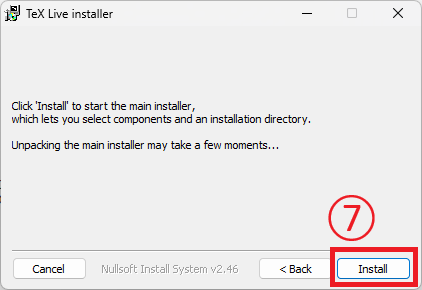
第七步,點擊 Install

https://raw.githubusercontent.com/Josh-test-lab/website-assets-repository/refs/heads/main/posts/Setting%20Up%20a%20Local%20LaTeX%20Environment%20Build%20Your%20Own%20Overleaf%20with%20TeX%20Live%20and%20VS%20Code/6.png

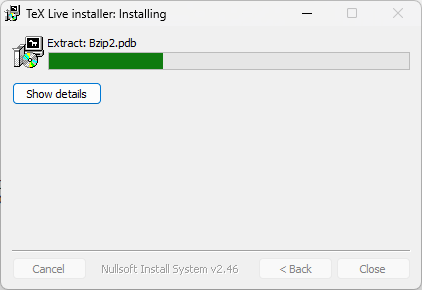
等待初始化安裝。

https://raw.githubusercontent.com/Josh-test-lab/website-assets-repository/refs/heads/main/posts/Setting%20Up%20a%20Local%20LaTeX%20Environment%20Build%20Your%20Own%20Overleaf%20with%20TeX%20Live%20and%20VS%20Code/7.png

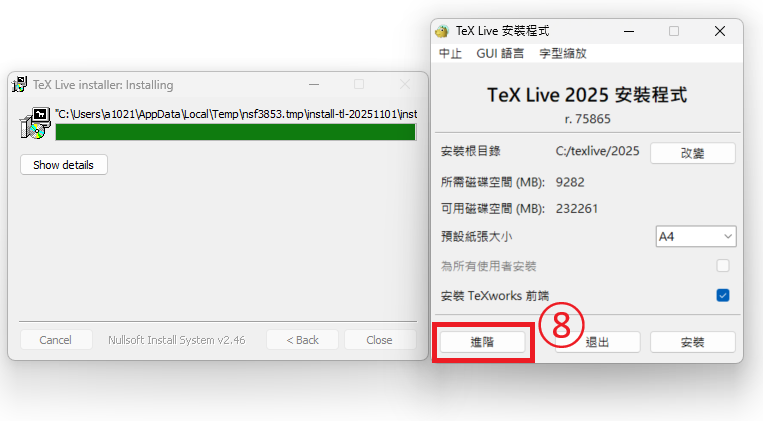
出現安裝程式介面即可開始安裝。

第八步,點擊進階

https://raw.githubusercontent.com/Josh-test-lab/website-assets-repository/refs/heads/main/posts/Setting%20Up%20a%20Local%20LaTeX%20Environment%20Build%20Your%20Own%20Overleaf%20with%20TeX%20Live%20and%20VS%20Code/8.png

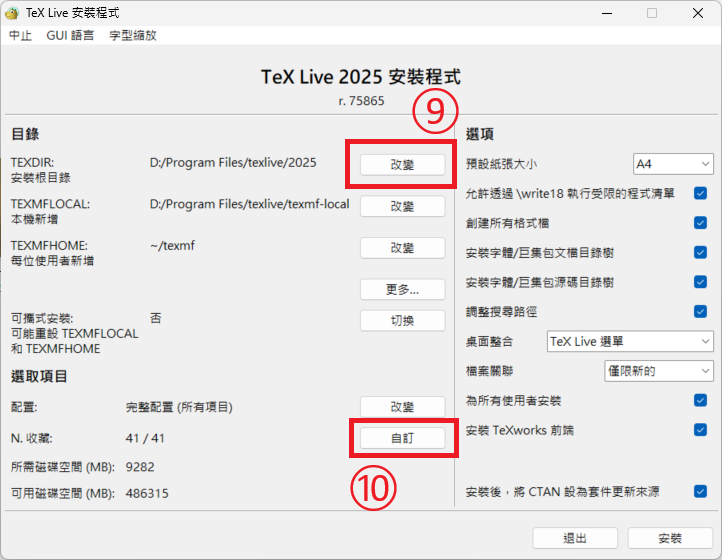
第九步,選擇安裝的根目錄,不一定需要修改。

第十步,點擊自訂

https://raw.githubusercontent.com/Josh-test-lab/website-assets-repository/refs/heads/main/posts/Setting%20Up%20a%20Local%20LaTeX%20Environment%20Build%20Your%20Own%20Overleaf%20with%20TeX%20Live%20and%20VS%20Code/9.png

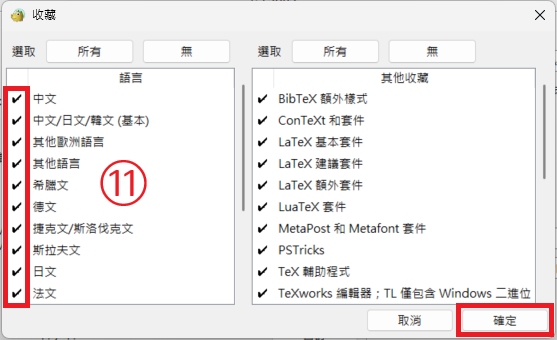
第十一步,選擇之後撰寫 $\LaTeX$ 時會用到的語言,並點擊確定。一般會至少選用中文中文/日文/韓文(基本)英文

https://raw.githubusercontent.com/Josh-test-lab/website-assets-repository/refs/heads/main/posts/Setting%20Up%20a%20Local%20LaTeX%20Environment%20Build%20Your%20Own%20Overleaf%20with%20TeX%20Live%20and%20VS%20Code/11.png

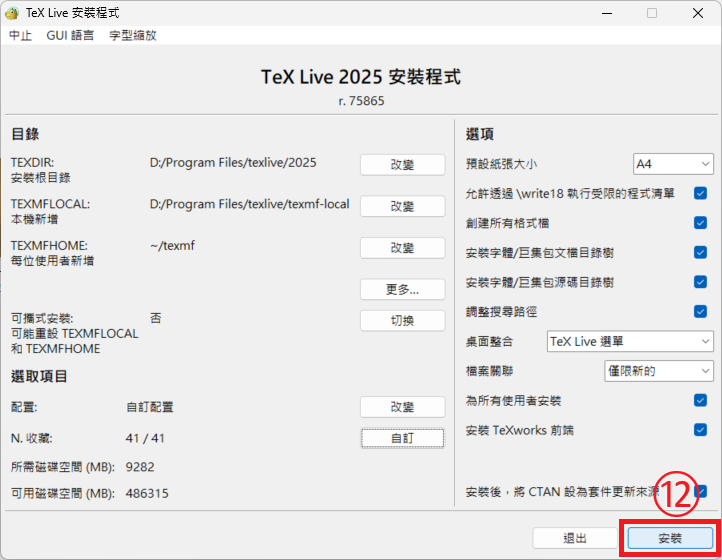
第十二步,若無其他需要調整,點擊安裝

https://raw.githubusercontent.com/Josh-test-lab/website-assets-repository/refs/heads/main/posts/Setting%20Up%20a%20Local%20LaTeX%20Environment%20Build%20Your%20Own%20Overleaf%20with%20TeX%20Live%20and%20VS%20Code/12.png

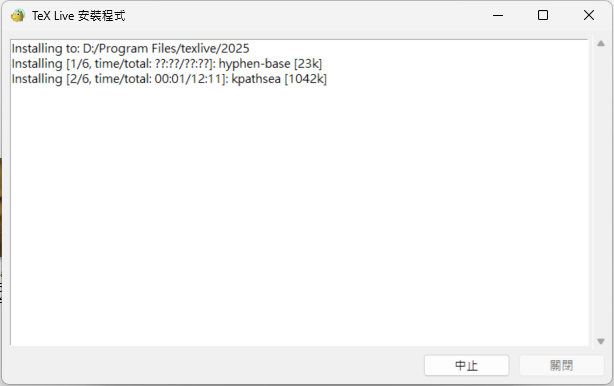
接下來就等待安裝即可,安裝程式會從網路上下載對應的檔案並安裝,安裝時務必保持網路暢通。安裝過程並不會消耗太多網路,可以繼續正常使用電腦。但需要注意的是,安裝時長偏長,依照先前選用的安裝,可能需等待 3 至 5 小時。
https://raw.githubusercontent.com/Josh-test-lab/website-assets-repository/refs/heads/main/posts/Setting%20Up%20a%20Local%20LaTeX%20Environment%20Build%20Your%20Own%20Overleaf%20with%20TeX%20Live%20and%20VS%20Code/13.png

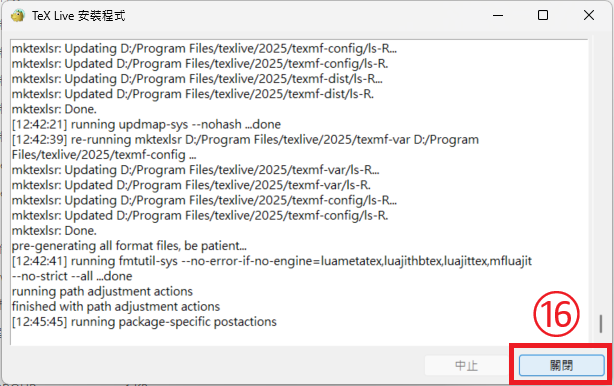
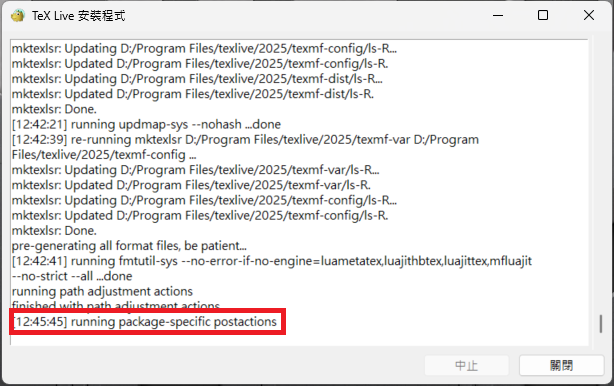
當看到 running package-specific postactions 且不再更新安裝畫面時,即可能為安裝完畢。此時,可以至安裝目錄查看安裝日誌,確保完成安裝。
https://raw.githubusercontent.com/Josh-test-lab/website-assets-repository/refs/heads/main/posts/Setting%20Up%20a%20Local%20LaTeX%20Environment%20Build%20Your%20Own%20Overleaf%20with%20TeX%20Live%20and%20VS%20Code/14.png

第十三步,移至安裝資料夾,一般為 安裝根目錄/texlive/2025/

第十四步,開啟 install-tl.log 檔案。

第十五步,查看是否有安裝完畢訊息及歡迎使用訊息。
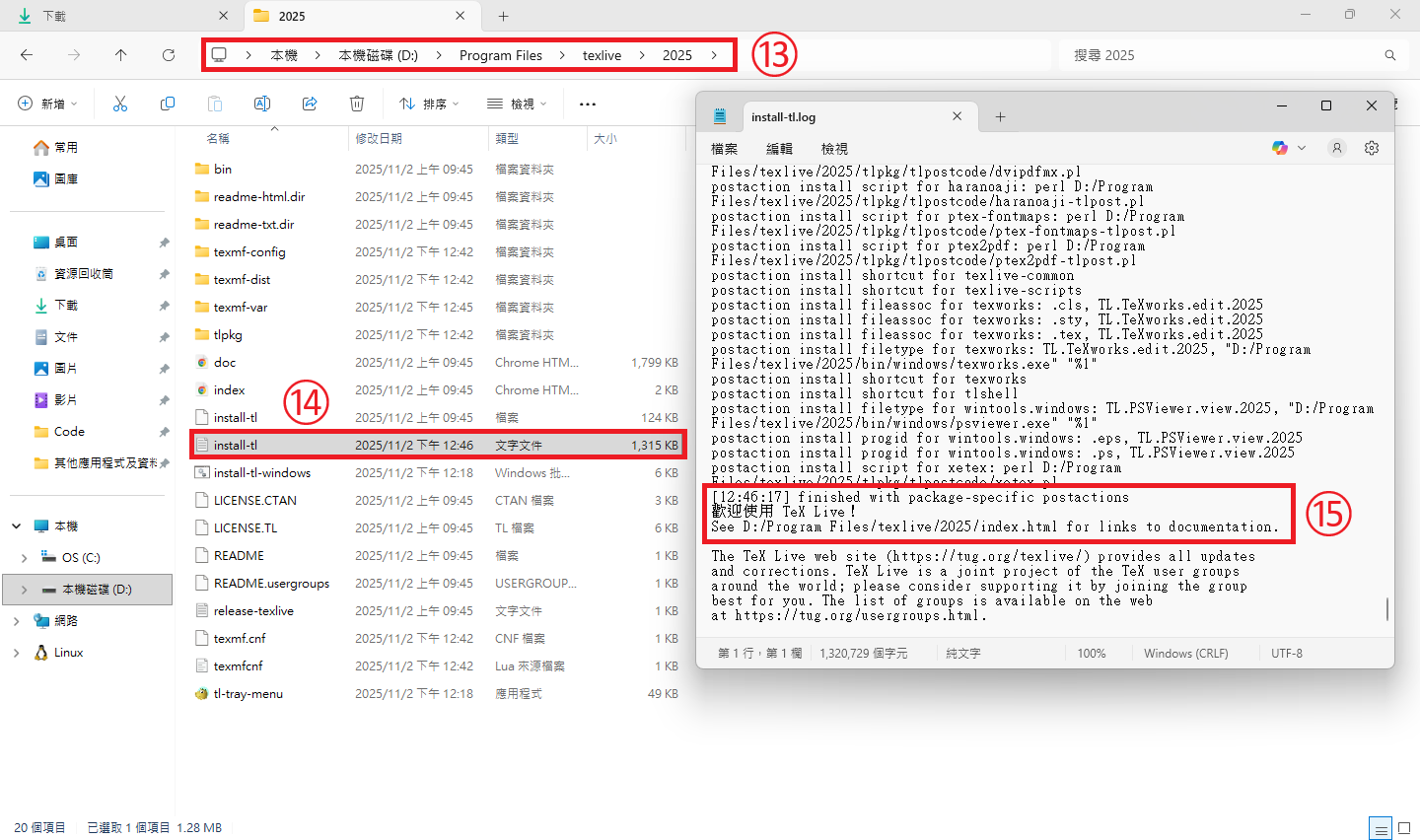
https://raw.githubusercontent.com/Josh-test-lab/website-assets-repository/refs/heads/main/posts/Setting%20Up%20a%20Local%20LaTeX%20Environment%20Build%20Your%20Own%20Overleaf%20with%20TeX%20Live%20and%20VS%20Code/15.png

第十六步,點擊關閉,關閉 TeX Live 安裝程式。

https://raw.githubusercontent.com/Josh-test-lab/website-assets-repository/refs/heads/main/posts/Setting%20Up%20a%20Local%20LaTeX%20Environment%20Build%20Your%20Own%20Overleaf%20with%20TeX%20Live%20and%20VS%20Code/16.png

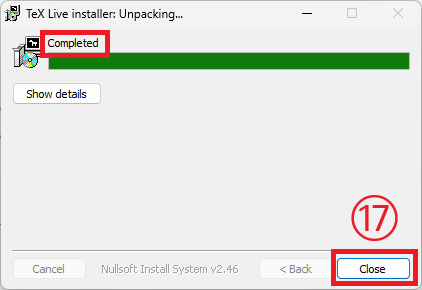
第十七步,點擊 Close

https://raw.githubusercontent.com/Josh-test-lab/website-assets-repository/refs/heads/main/posts/Setting%20Up%20a%20Local%20LaTeX%20Environment%20Build%20Your%20Own%20Overleaf%20with%20TeX%20Live%20and%20VS%20Code/17.png

第十八步,開啟終端,如命令提示字符。並輸入

1
latex -v

確認有顯示編譯器相關資訊。如未出現,可能需要設定環境變數,請參考第十九至二十七步。
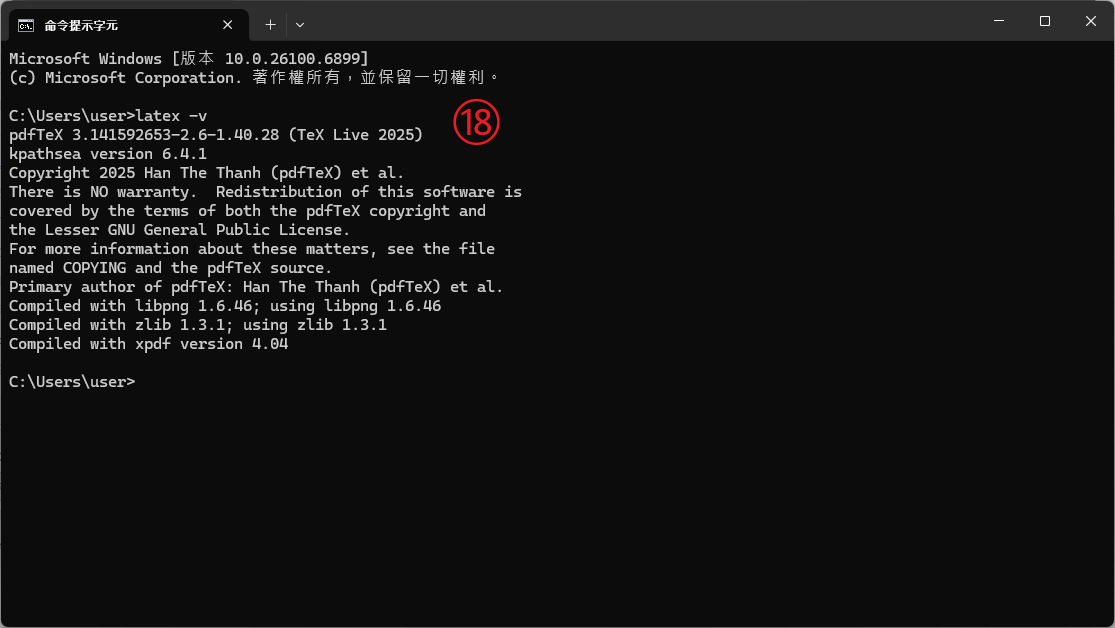
https://raw.githubusercontent.com/Josh-test-lab/website-assets-repository/refs/heads/main/posts/Setting%20Up%20a%20Local%20LaTeX%20Environment%20Build%20Your%20Own%20Overleaf%20with%20TeX%20Live%20and%20VS%20Code/19.png

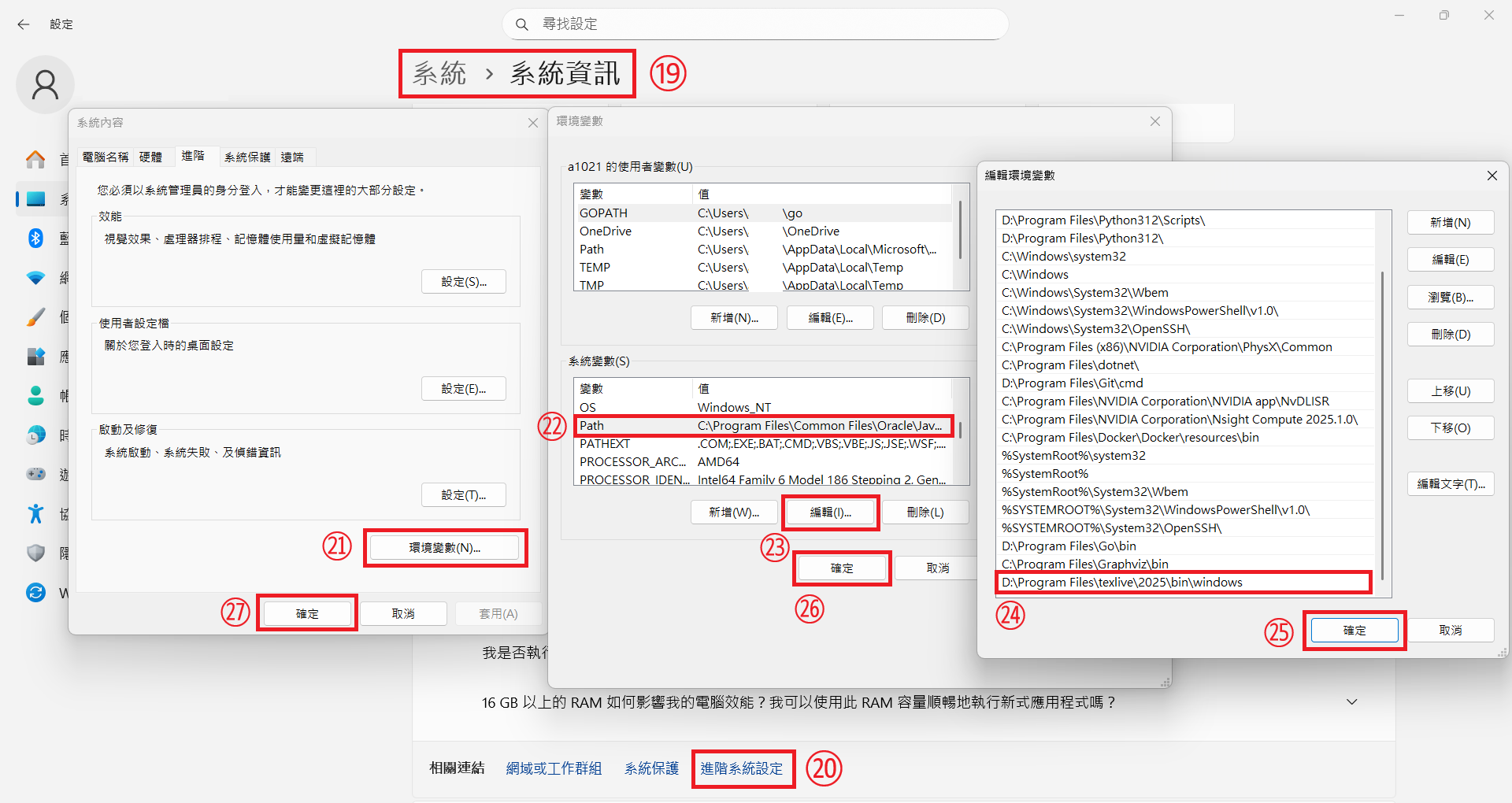
第十九步,點擊或使用快捷鍵 Win + i 開啟設定,並依次進入系統 > 系統資訊

第二十步,點擊進階系統設定

第二十一步,點擊環境變數

第二十二步,點擊系統變數下的 Path

第二十三步,點擊編輯

第二十四步,確認 TeX Live 的安裝目錄是否有出現,應像是 安裝目錄\texlive\2025\bin\windows ,如未出現,請點擊新增並自行增加該路徑。

第二十五步,點擊確定

第二十六步,點擊確定

第二十七步,點擊確定

https://raw.githubusercontent.com/Josh-test-lab/website-assets-repository/refs/heads/main/posts/Setting%20Up%20a%20Local%20LaTeX%20Environment%20Build%20Your%20Own%20Overleaf%20with%20TeX%20Live%20and%20VS%20Code/20.png

於 VS Code 中編輯

在開始用 VS Code 編輯 .tex 檔案前,我們必須安裝相關插件,才能夠調用剛才安裝的編譯器。

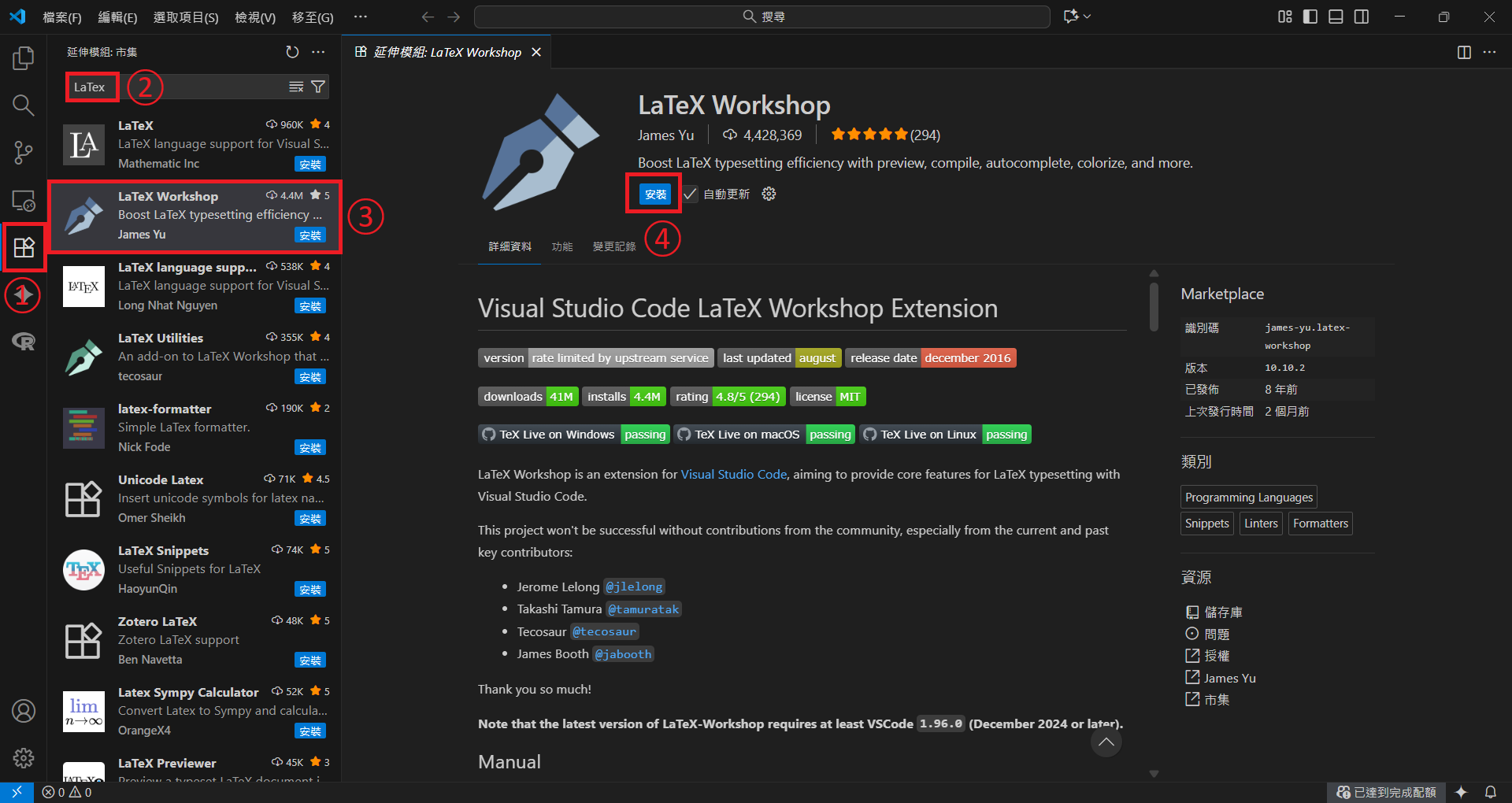
第一步,點擊延伸模組

第二步,於搜尋框輸入 LaTeX

第三步,點擊 LaTeX Workshop 插件。

第四步,點擊安裝

https://raw.githubusercontent.com/Josh-test-lab/website-assets-repository/refs/heads/main/posts/Setting%20Up%20a%20Local%20LaTeX%20Environment%20Build%20Your%20Own%20Overleaf%20with%20TeX%20Live%20and%20VS%20Code/21.png

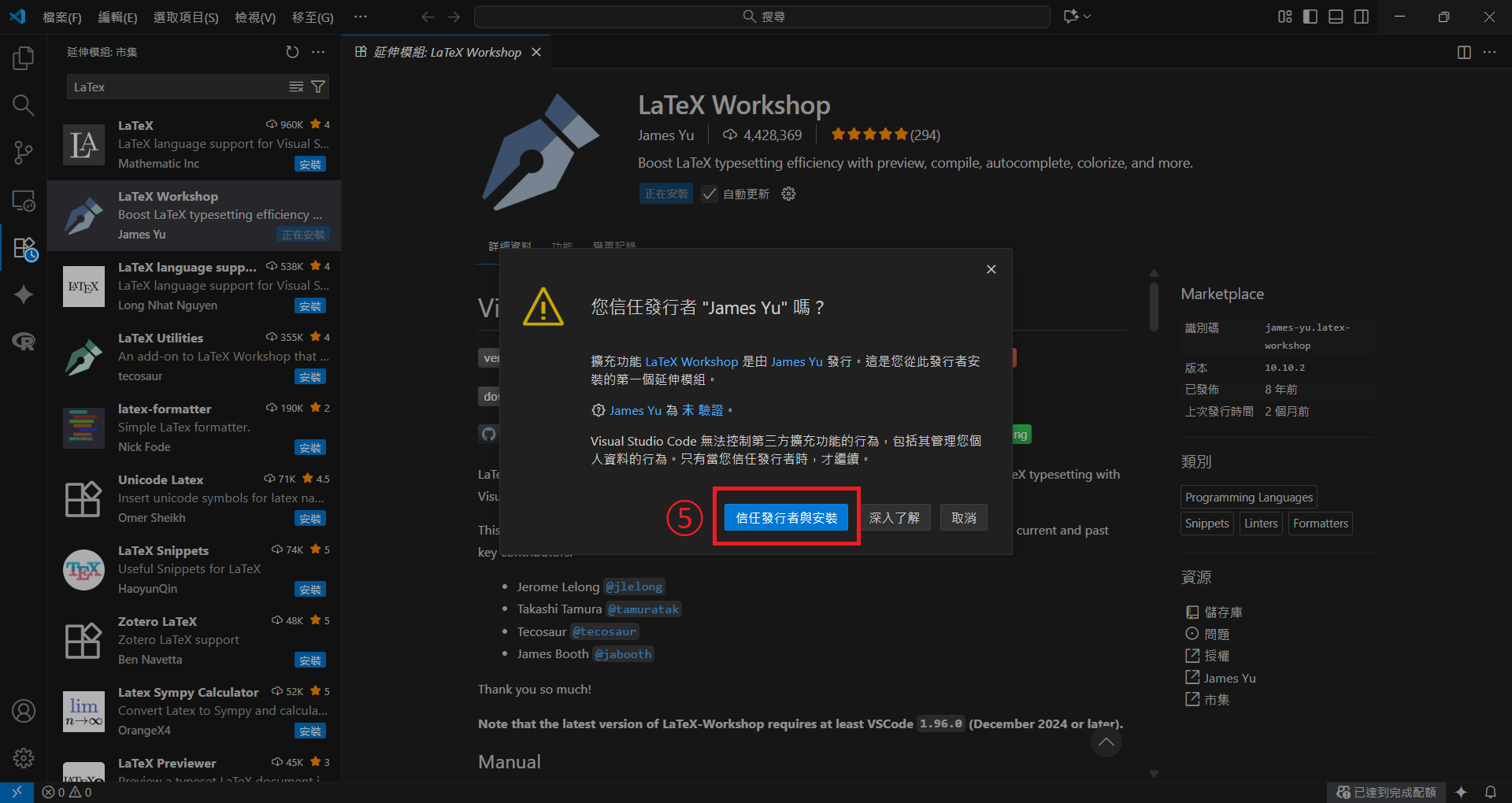
第五步,點擊信任發行者與安裝

https://raw.githubusercontent.com/Josh-test-lab/website-assets-repository/refs/heads/main/posts/Setting%20Up%20a%20Local%20LaTeX%20Environment%20Build%20Your%20Own%20Overleaf%20with%20TeX%20Live%20and%20VS%20Code/22.png

插件安裝完畢後,仍需設定才能使用剛才安裝的編譯器。

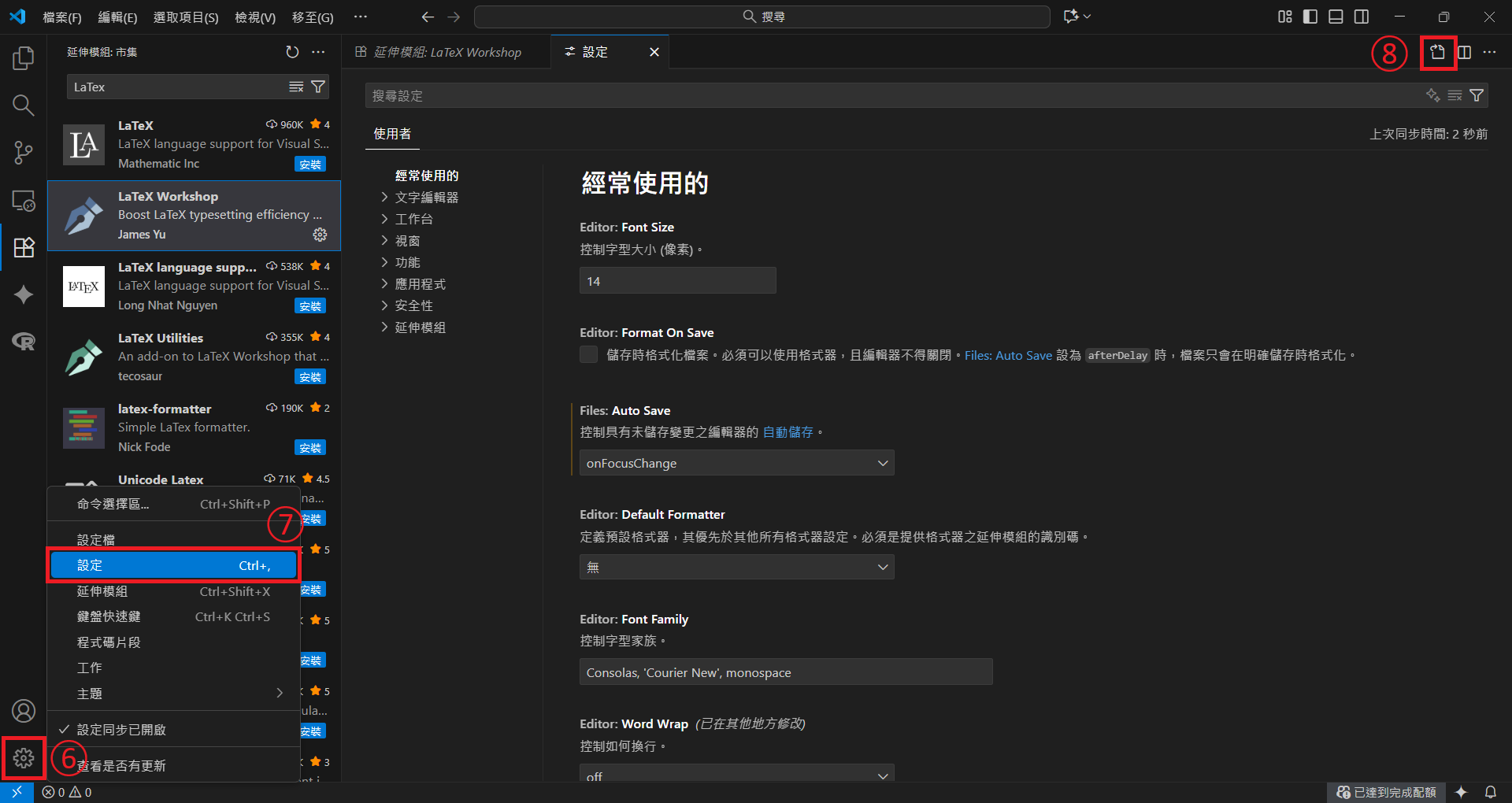
第六步,點擊管理

第七步,點擊設定

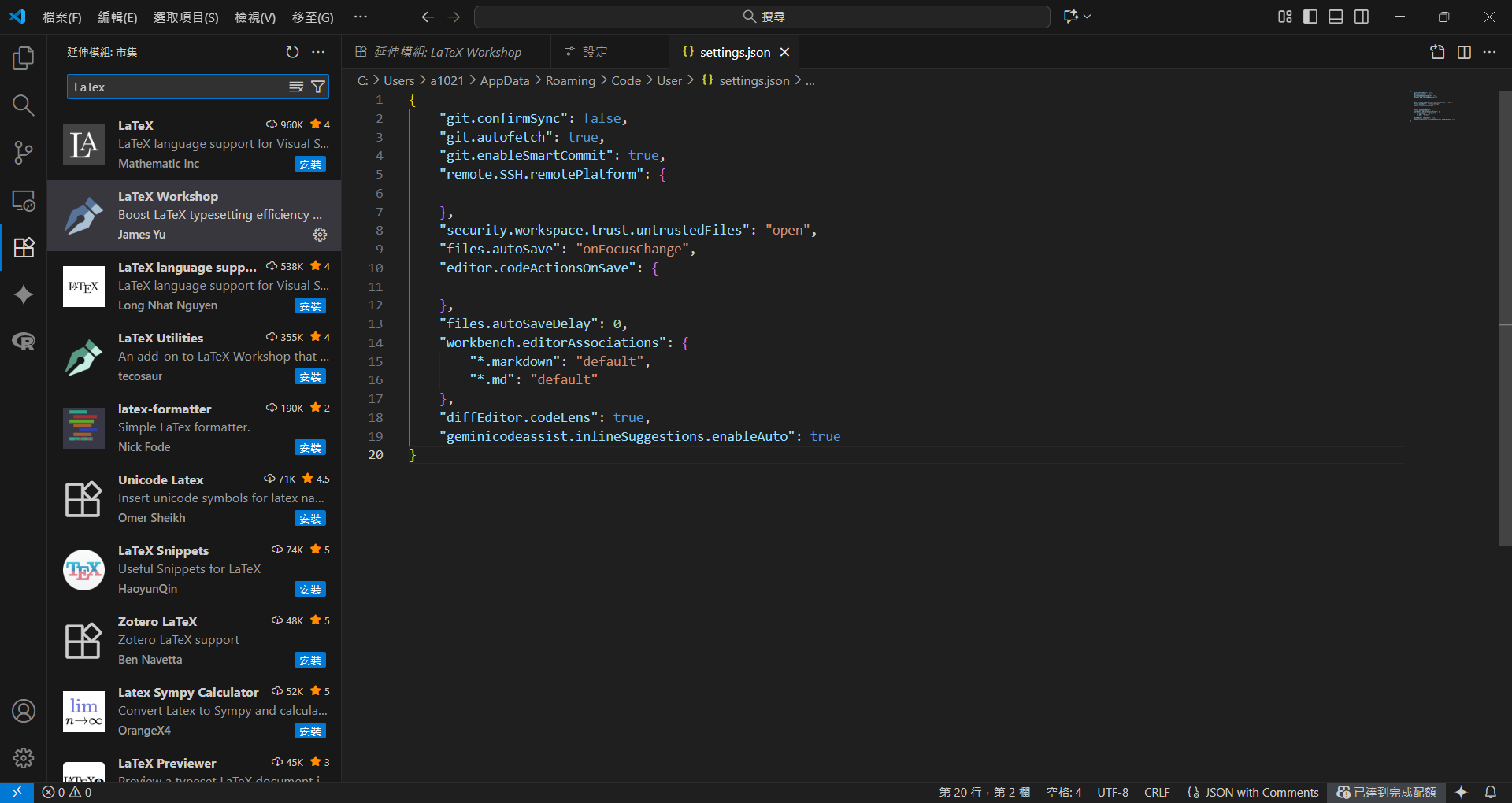
第八步,點擊開啟設定(JSON)

https://raw.githubusercontent.com/Josh-test-lab/website-assets-repository/refs/heads/main/posts/Setting%20Up%20a%20Local%20LaTeX%20Environment%20Build%20Your%20Own%20Overleaf%20with%20TeX%20Live%20and%20VS%20Code/23.png

這是 VS Code 的 JSON 設定文件,請於倒數第二行最後增加英文逗號,並於換行後新增如下內容:

  1
  2
  3
  4
  5
  6
  7
  8
  9
 10
 11
 12
 13
 14
 15
 16
 17
 18
 19
 20
 21
 22
 23
 24
 25
 26
 27
 28
 29
 30
 31
 32
 33
 34
 35
 36
 37
 38
 39
 40
 41
 42
 43
 44
 45
 46
 47
 48
 49
 50
 51
 52
 53
 54
 55
 56
 57
 58
 59
 60
 61
 62
 63
 64
 65
 66
 67
 68
 69
 70
 71
 72
 73
 74
 75
 76
 77
 78
 79
 80
 81
 82
 83
 84
 85
 86
 87
 88
 89
 90
 91
 92
 93
 94
 95
 96
 97
 98
 99
100
101
102
103
104
105
106
107
108
109
110
111
112
113
114
115
116
117
118
119
120
121
122
123
124
125
126
127
128
129
130
131
132
133
134
135
136
137
138
139
140
141
142
143
144
145
146
    "latex-workshop.hover.preview.enabled": true,
    "latex-workshop.latex.autoBuild.run": "onSave",
    "latex-workshop.showContextMenu": true,
    "latex-workshop.intellisense.package.enabled": true,
    "latex-workshop.message.error.show": false,
    "latex-workshop.message.warning.show": false,
    "latex-workshop.latex.tools": [
        {
            "name": "xelatex",
            "command": "D:/Program Files/texlive/2025/bin/windows/xelatex.exe",
            "args": [
                "-synctex=1",
                "-interaction=nonstopmode",
                "-file-line-error",
                "%DOCFILE%"
            ]
        },
        {
            "name": "pdflatex",
            "command": "D:/Program Files/texlive/2025/bin/windows/pdflatex.exe",
            "args": [
                "-synctex=1",
                "-interaction=nonstopmode",
                "-file-line-error",
                "%DOCFILE%"
            ]
        },
        {
            "name": "latexmk",
            "command": "D:/Program Files/texlive/2025/bin/windows/latexmk.exte",
            "args": [
                "-synctex=1",
                "-interaction=nonstopmode",
                "-file-line-error",
                "-pdf",
                "-outdir=%OUTDIR%",
                "%DOCFILE%"
            ]
        },
        {
            "name": "bibtex",
            "command": "bibtex",
            "args": [
                "%DOCFILE%"
            ]
        },
        {
            "name": "biber",
            "command": "biber",
            "args": [
                "%DOCFILE%"
            ]
        }
    ],
    "latex-workshop.latex.recipes": [
        {
            "name": "pdflatex -> bibtex -> pdflatex*2",
            "tools": [
                "pdflatex",
                "bibtex",
                "pdflatex",
                "pdflatex"
            ]
        },
        {
            "name": "XeLaTeX",
            "tools": [
                "xelatex"
            ]
        },
        {
            "name": "PDFLaTeX",
            "tools": [
                "pdflatex"
            ]
        },
        {
            "name": "BibTeX",
            "tools": [
                "bibtex"
            ]
        },
        {
            "name": "LaTeXmk",
            "tools": [
                "latexmk"
            ]
        },
        {
            "name": "xelatex -> bibtex -> xelatex*2",
            "tools": [
                "xelatex",
                "bibtex",
                "xelatex",
                "xelatex"
            ]
        },
        {
            "name": "xelatex -> biber -> xelatex*2",
            "tools": [
                "xelatex",
                "biber",
                "xelatex",
                "xelatex"
            ]
        },
        
    ],
    "latex-workshop.latex.clean.fileTypes": [
        "*.aux",
        "*.bbl",
        "*.blg",
        "*.idx",
        "*.ind",
        "*.lof",
        "*.lot",
        "*.out",
        "*.toc",
        "*.acn",
        "*.acr",
        "*.alg",
        "*.glg",
        "*.glo",
        "*.gls",
        "*.ist",
        "*.fls",
        "*.log",
        "*.fdb_latexmk"
    ],
    "latex-workshop.latex.autoClean.run": "onFailed",
    "latex-workshop.latex.recipe.default": "lastUsed",
    "latex-workshop.view.pdf.internal.synctex.keybinding": "double-click",
    "latex-workshop.view.pdf.viewer": "external",
    "latex-workshop.view.pdf.ref.viewer":"auto",
    "latex-workshop.view.pdf.external.viewer.args": [
        "%PDF%"
    ],
    "latex-workshop.view.pdf.external.synctex.args": [
        "-forward-search",
        "%TEX%",
        "%LINE%",
        "-reuse-instance",
        "-inverse-search",
        "\"D:/Users/user/AppData/Local/Programs/Microsoft VS Code/Code.exe\" \"D:/Users/user/AppData/Local/Programs/Microsoft VS Code/resources/app/out/cli.js\" -r -g \"%f:%l\"",
        "%PDF%"
    ]

https://raw.githubusercontent.com/Josh-test-lab/website-assets-repository/refs/heads/main/posts/Setting%20Up%20a%20Local%20LaTeX%20Environment%20Build%20Your%20Own%20Overleaf%20with%20TeX%20Live%20and%20VS%20Code/25.png

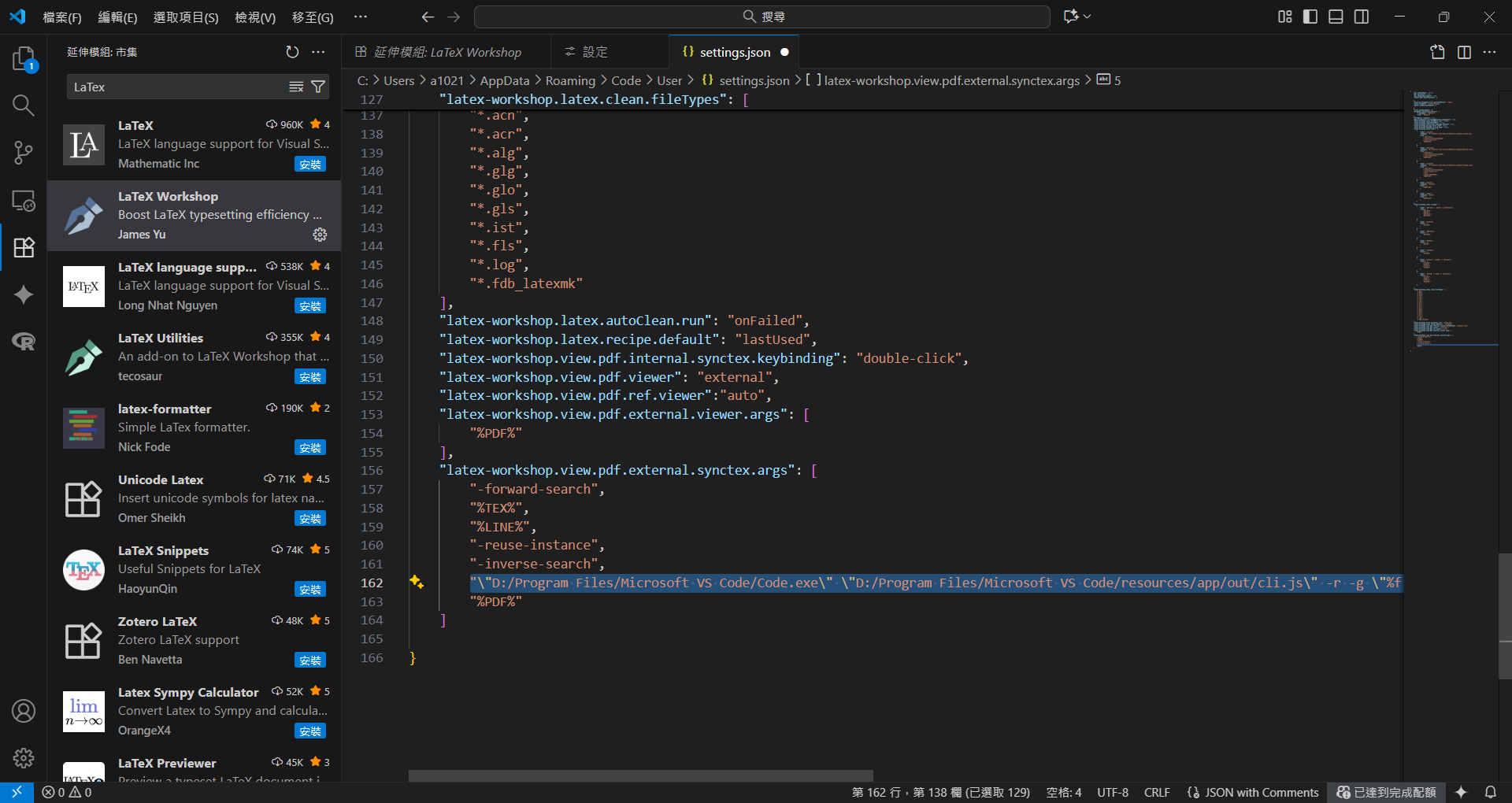
第九步,修改啟動目標。原則上來說,僅輸入 xelatexpdflatexlatexmk 也是可以的,但有時候會遇到無法開啟的情況,就得指定其絕對路徑。
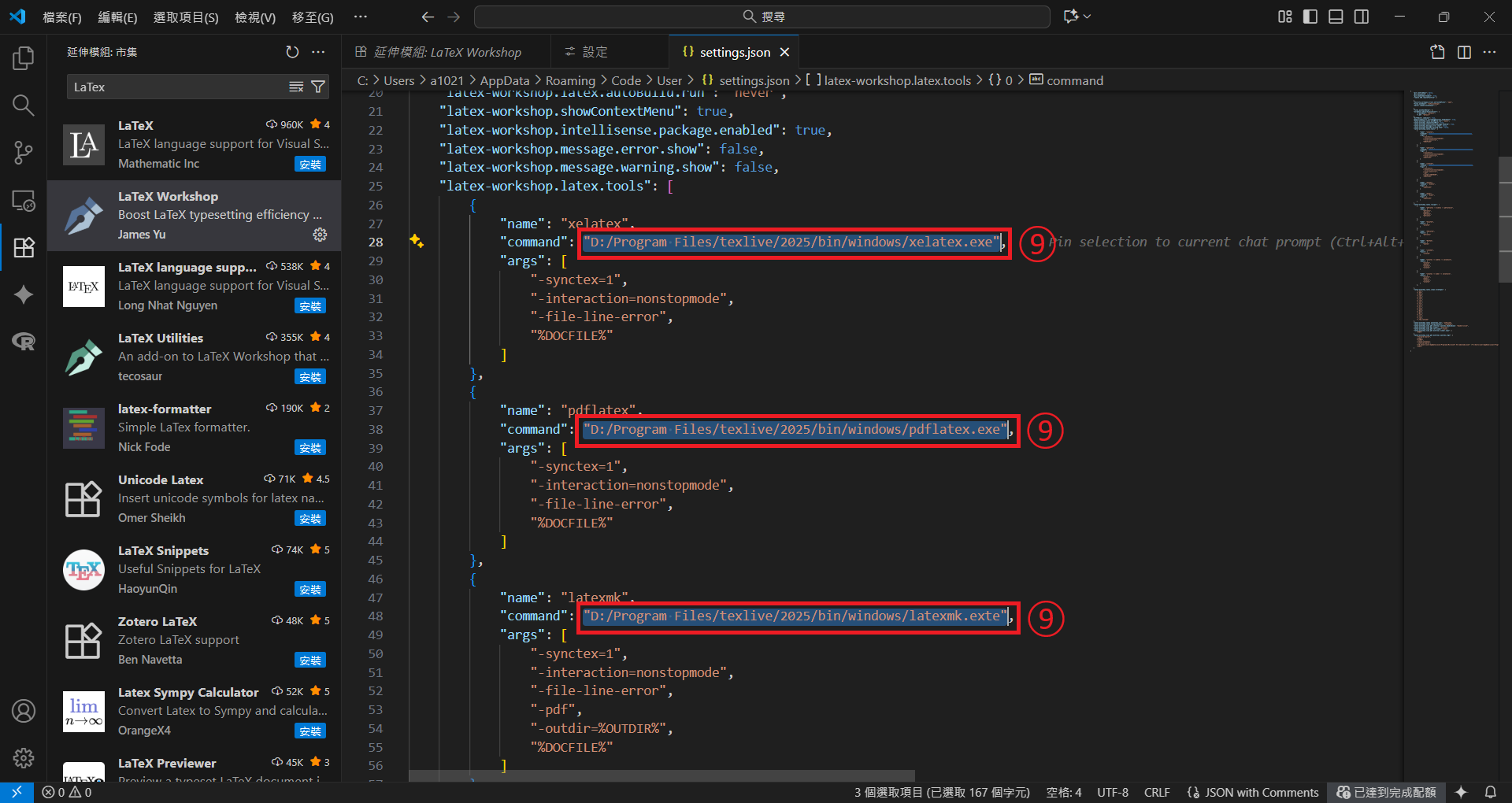
https://raw.githubusercontent.com/Josh-test-lab/website-assets-repository/refs/heads/main/posts/Setting%20Up%20a%20Local%20LaTeX%20Environment%20Build%20Your%20Own%20Overleaf%20with%20TeX%20Live%20and%20VS%20Code/26.png

也同時修改 VS Code 相關路徑。

https://raw.githubusercontent.com/Josh-test-lab/website-assets-repository/refs/heads/main/posts/Setting%20Up%20a%20Local%20LaTeX%20Environment%20Build%20Your%20Own%20Overleaf%20with%20TeX%20Live%20and%20VS%20Code/27.png

接下來就可以開始編輯文件了。

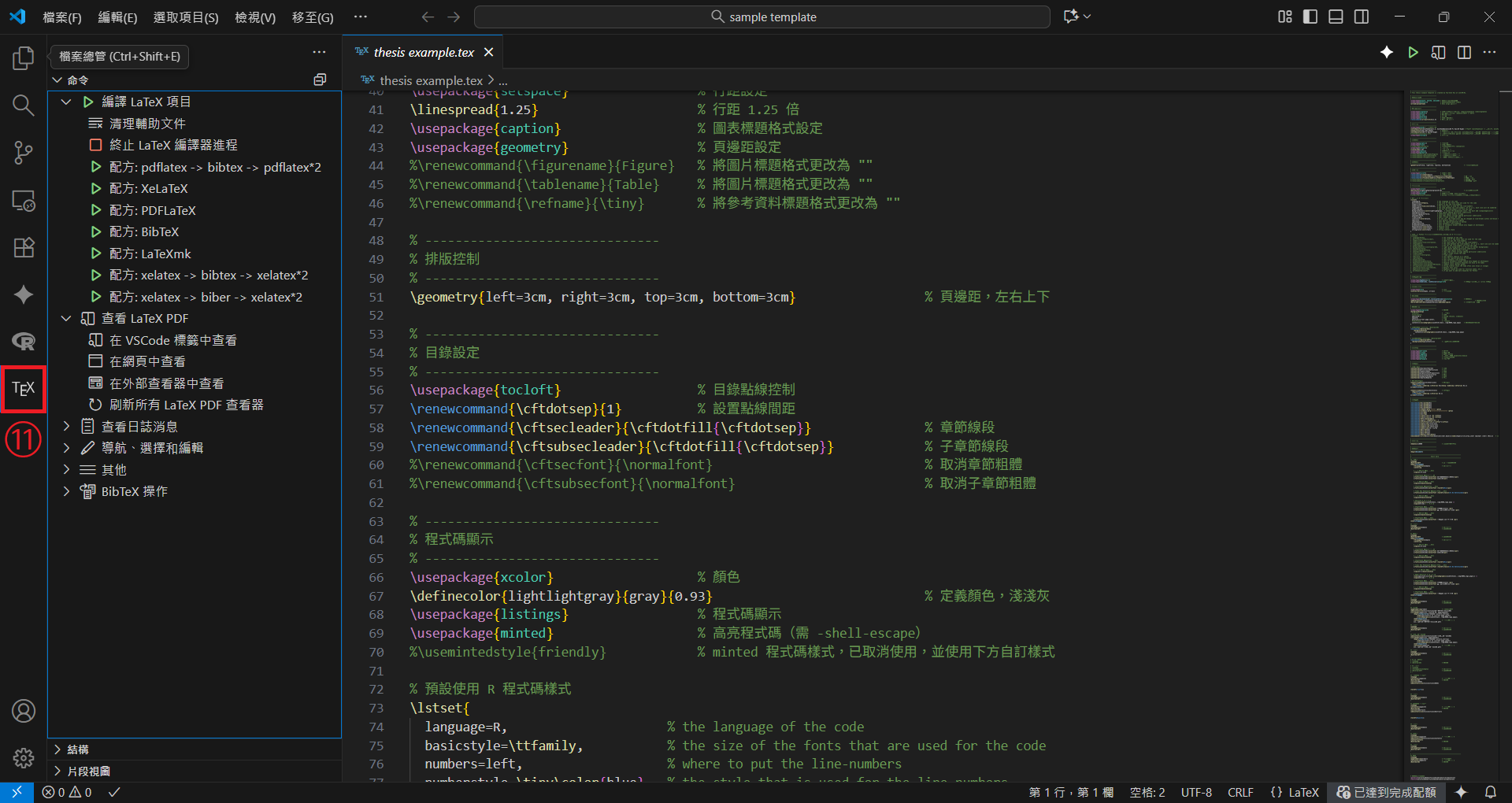
第十步,新增並點擊一個 .tex 檔案,左方便會出現 $\TeX$ 圖標。
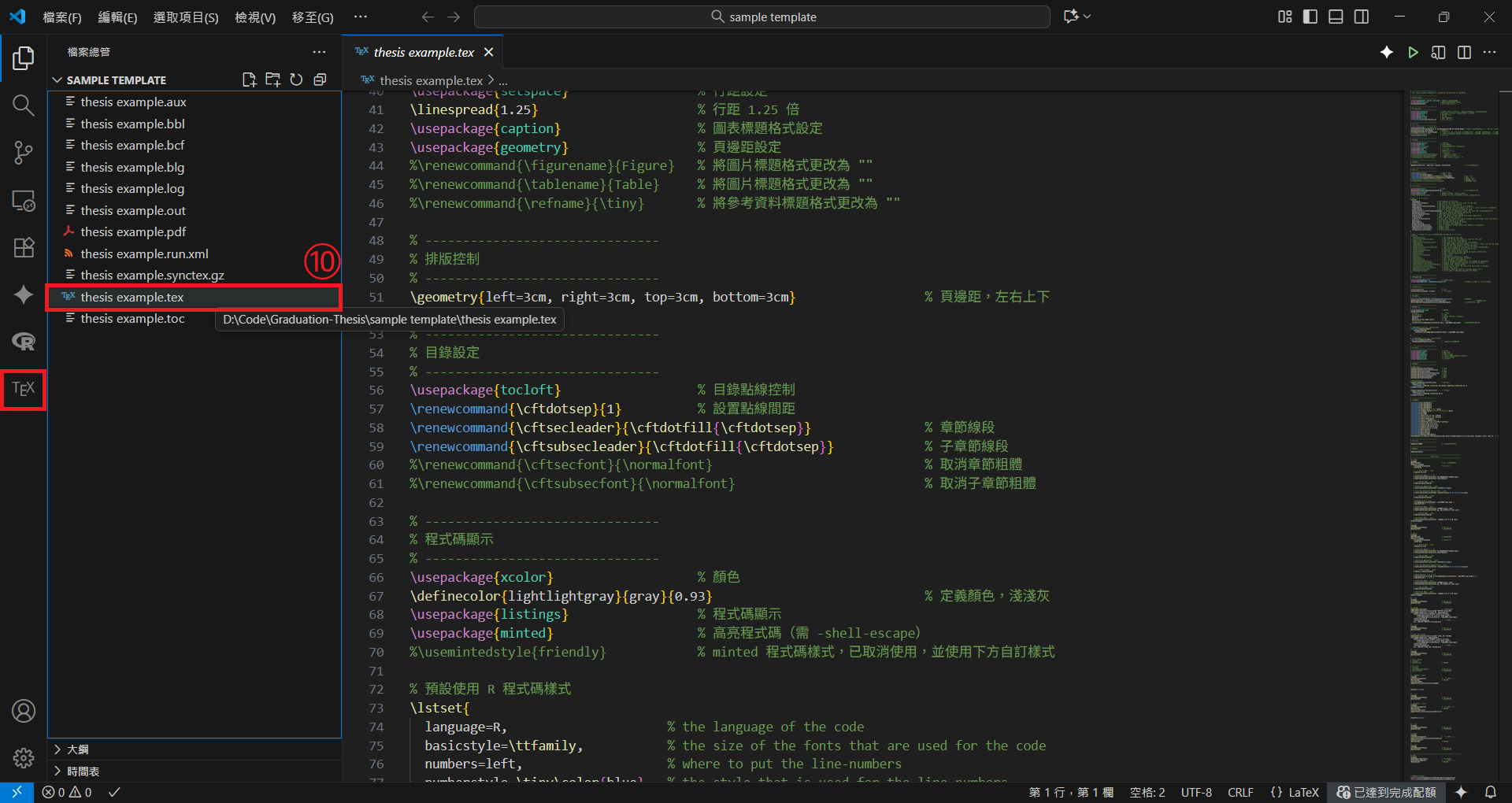
https://raw.githubusercontent.com/Josh-test-lab/website-assets-repository/refs/heads/main/posts/Setting%20Up%20a%20Local%20LaTeX%20Environment%20Build%20Your%20Own%20Overleaf%20with%20TeX%20Live%20and%20VS%20Code/28.png

當撰寫完 $\LaTeX$ 文本後,即可開始編譯。

第十一步,點擊 $\TeX$ 圖標。
https://raw.githubusercontent.com/Josh-test-lab/website-assets-repository/refs/heads/main/posts/Setting%20Up%20a%20Local%20LaTeX%20Environment%20Build%20Your%20Own%20Overleaf%20with%20TeX%20Live%20and%20VS%20Code/29.png

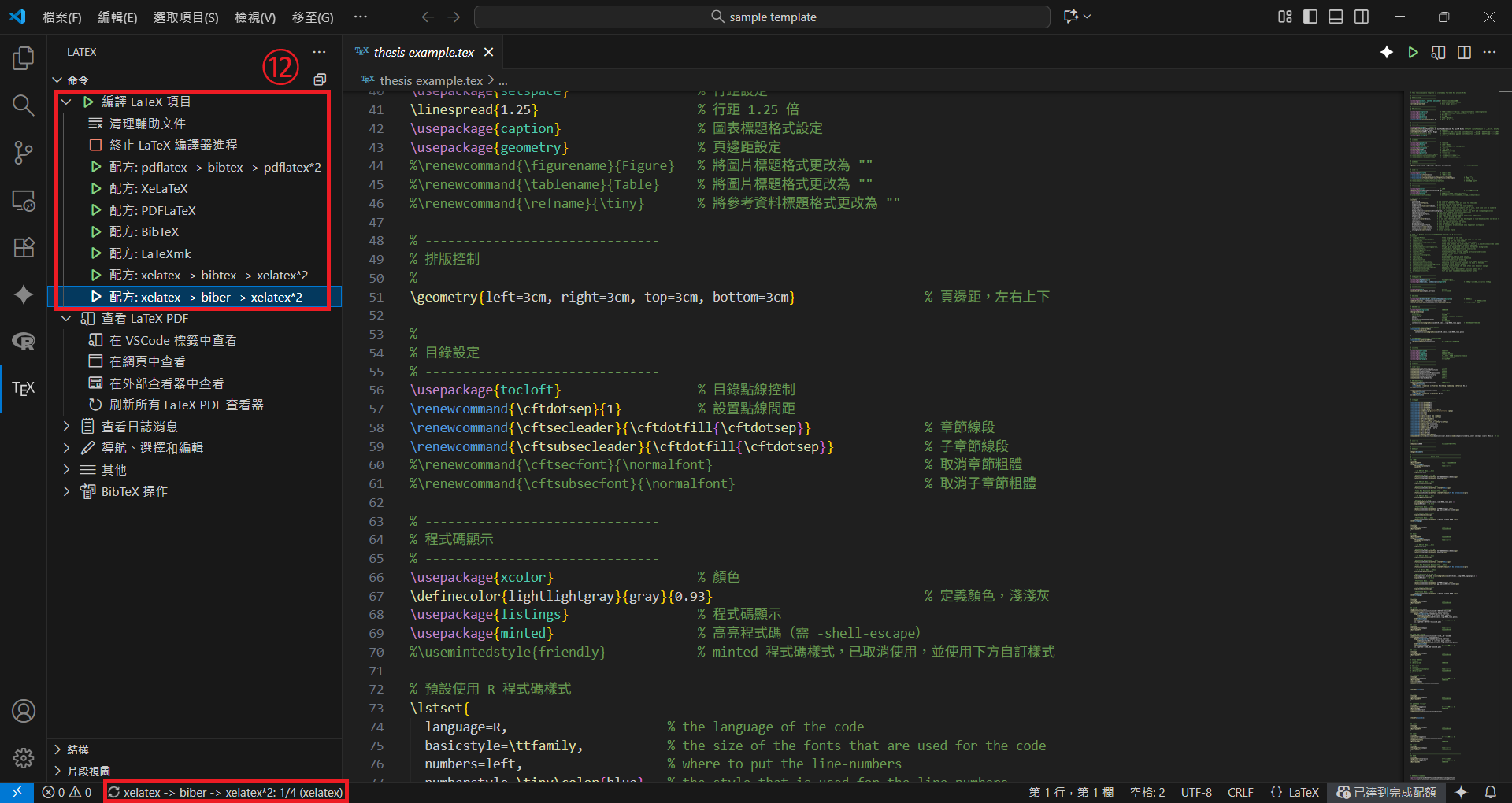
第十二步,於編譯 LaTeX 項目選擇欲使用的編譯方法。

編譯時,也可於左下角查看編譯進度。
https://raw.githubusercontent.com/Josh-test-lab/website-assets-repository/refs/heads/main/posts/Setting%20Up%20a%20Local%20LaTeX%20Environment%20Build%20Your%20Own%20Overleaf%20with%20TeX%20Live%20and%20VS%20Code/30.png

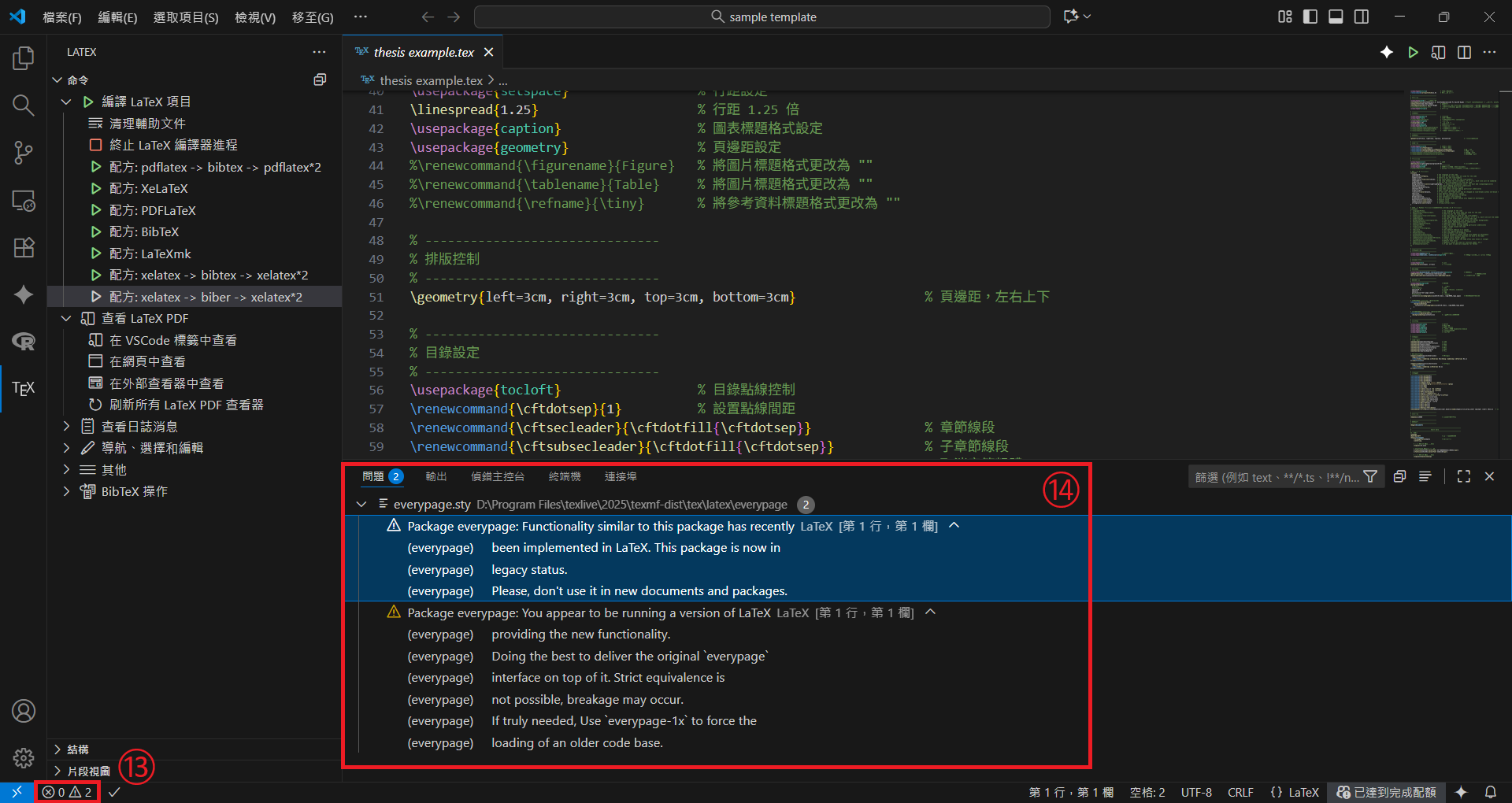
如在編譯時遇到問題,也可以查看其問題。

第十三步,點擊左下角的警告與資訊

第十四步,查看問題標籤列的警告與資訊

https://raw.githubusercontent.com/Josh-test-lab/website-assets-repository/refs/heads/main/posts/Setting%20Up%20a%20Local%20LaTeX%20Environment%20Build%20Your%20Own%20Overleaf%20with%20TeX%20Live%20and%20VS%20Code/31.png

編譯成功後,可以查看其結果。

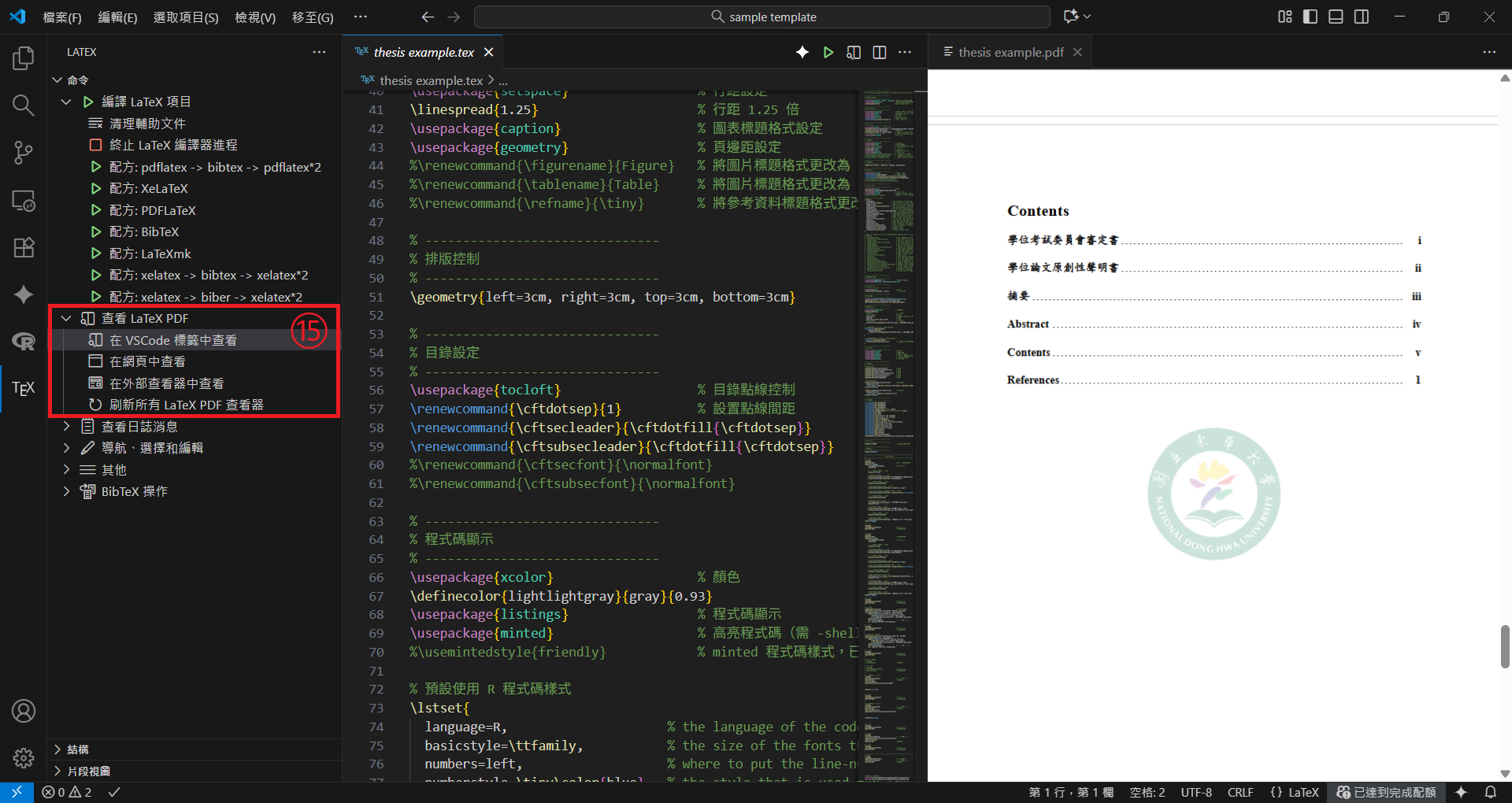
第十五步,點擊查看 LaTex PDF,並選擇於 VSCode 標籤中查看在網頁中查看

編譯完成後的 PDF 檔案會出現在 .tex 檔案對應的目錄。

https://raw.githubusercontent.com/Josh-test-lab/website-assets-repository/refs/heads/main/posts/Setting%20Up%20a%20Local%20LaTeX%20Environment%20Build%20Your%20Own%20Overleaf%20with%20TeX%20Live%20and%20VS%20Code/32.png

結語

$\LaTeX$ 是一個方便且強大的學術排版軟體,不僅能在不同平臺上產出美觀且一致的文件格式,還能大幅簡化以往在其他編輯軟體中常見的公式排版問題。在安裝過程中,雖可能遇到各種不同的問題,但能夠在本地環境中不限時地進行編譯,已較單純使用 Overleaf 書寫更具彈性與便利性。

參考資料